How do I install it?
Setting up Pulse Launcher takes less than a minute. Follow the instructions and in a few minutes you'll be able to join the server.
Step 1
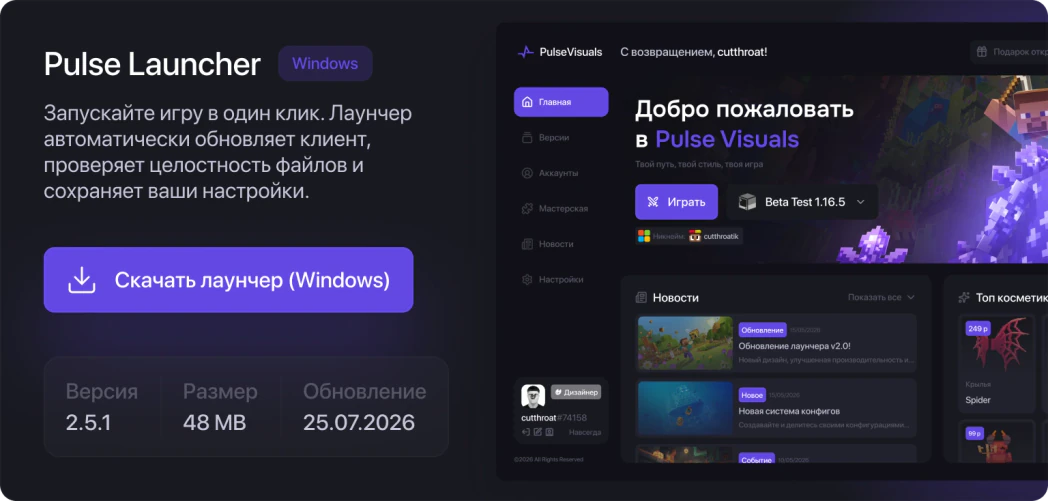
Download the launcher
Download the latest version of Pulse Launcher for Windows. The launcher automatically checks for updates and keeps the client up to date without any manual setup.
Step 2
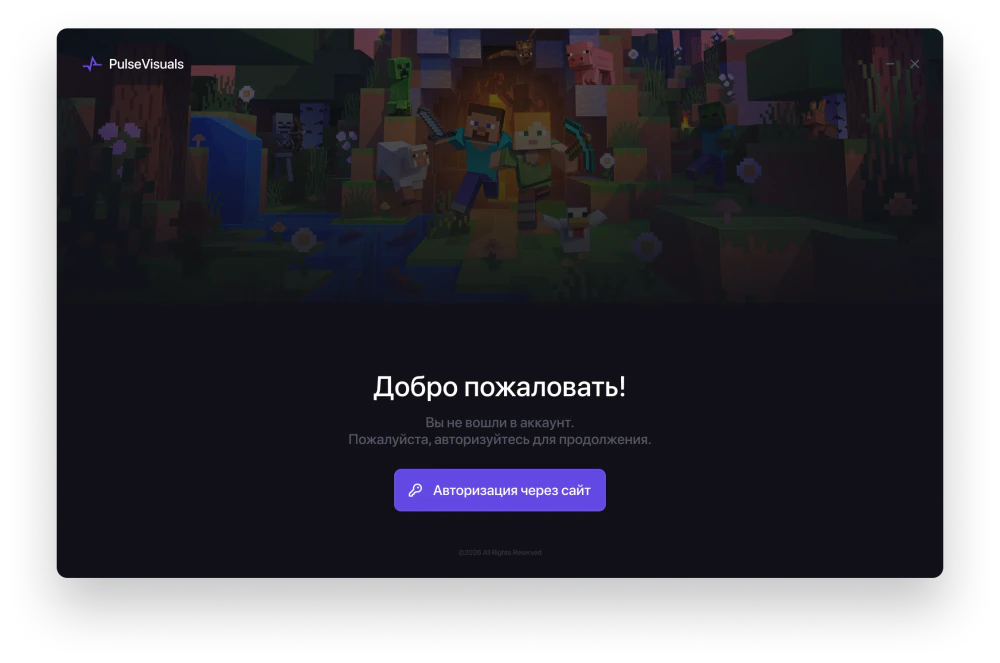
Sign in to your account
After launch, the launcher will open the sign-in page in your browser. Sign in to your Pulse account, and all your licenses, purchases and data will sync automatically.
Step 3
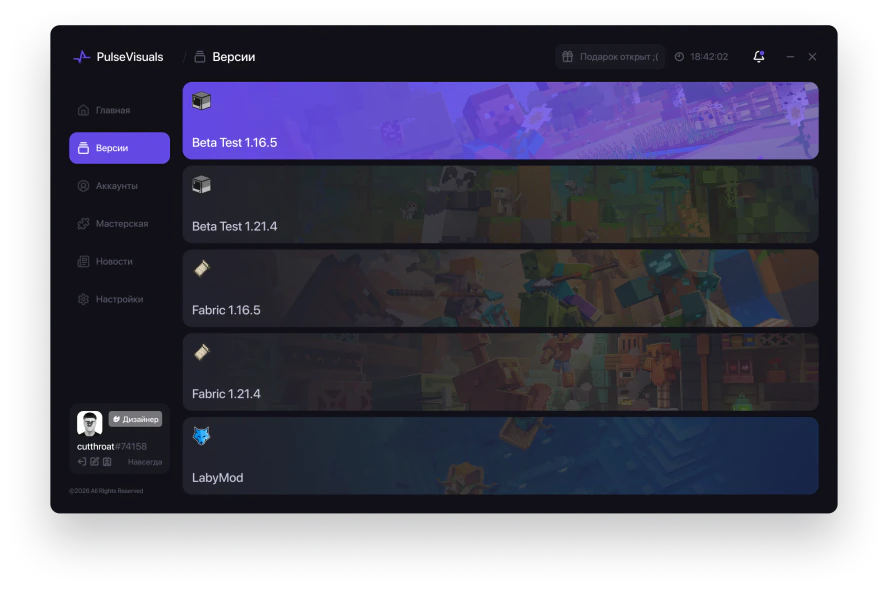
Select a Minecraft version
Select the game version you need from the available list and click “Play”. Pulse Launcher will prepare everything needed to launch by itself.
Step 4
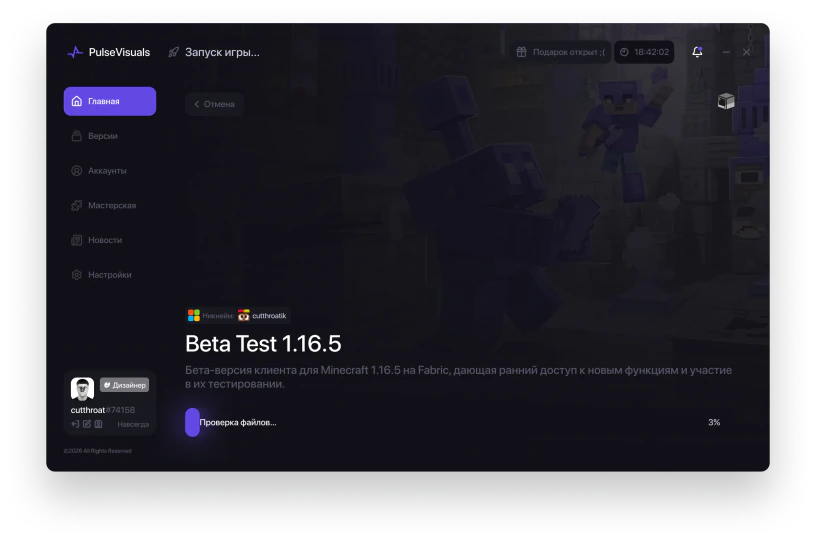
Wait for the first download
On first launch, the launcher will automatically download Minecraft, the Pulse client, libraries and the required game resources. Just wait for the download to finish.
Step 5
Done! You can play
Once installation is complete, click “Play” and start using all the features of Pulse Visuals. The launcher will install updates automatically when needed.